 Home
Home Share
ShareReview Startup Apps on Your PC
April 2026 — Tip of the Month
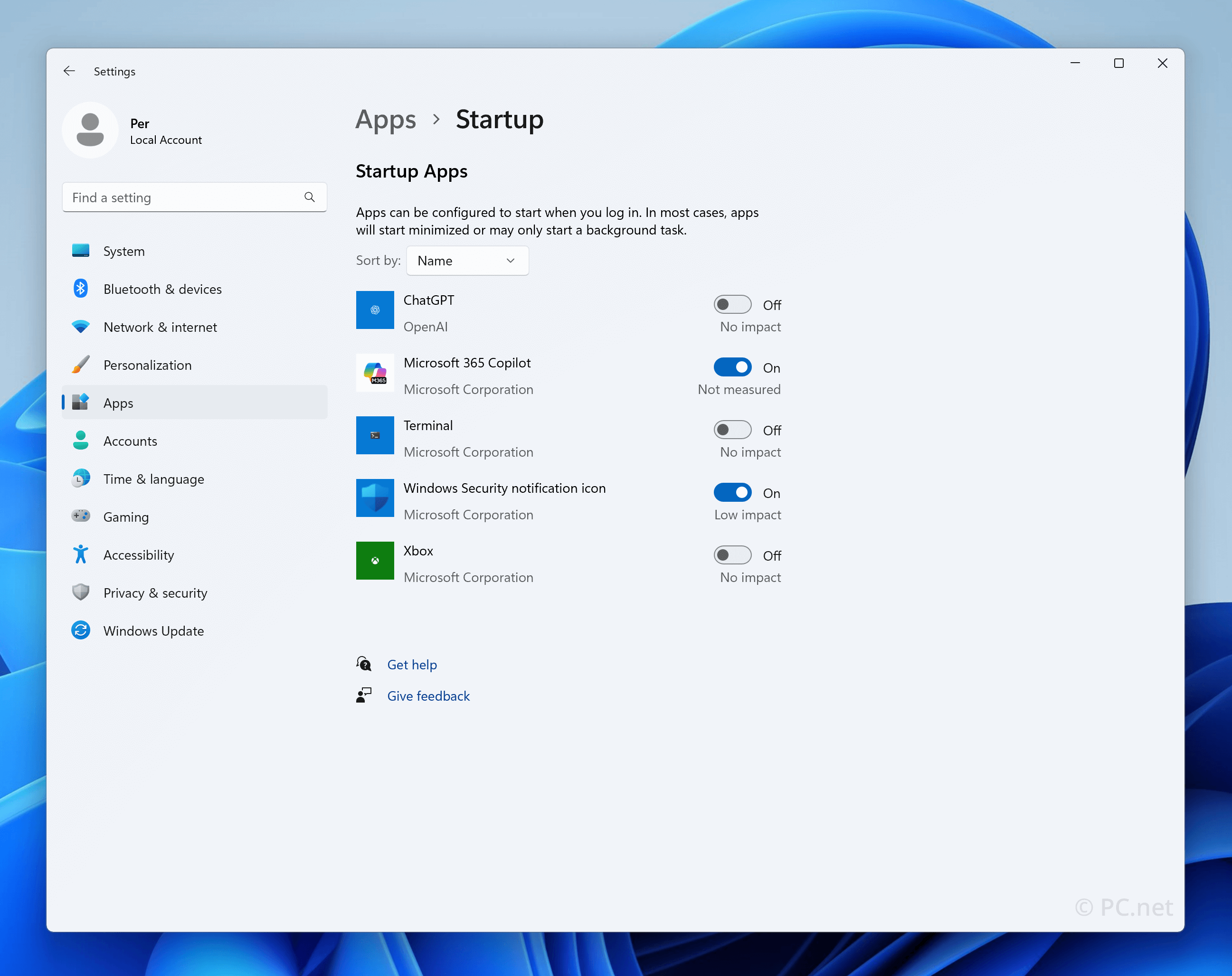
When your computer boots up, a list of "startup apps" automatically launches in the background. Over time, this list of apps may grow without your knowledge. By manually reviewing these apps, you can improve your PC’s startup time and ensure no unnecessary applications are slowing down your computer.
Below are instructions for reviewing and trimming your startup apps on Windows and macOS.
On Windows
- Press Ctrl + Shift + Esc to open Task Manager.
- Click the Startup apps tab.
- Review the list and check the Status column to see what's currently enabled.
- Switch the toggle to Off for any startup apps you want to disable.
macOS
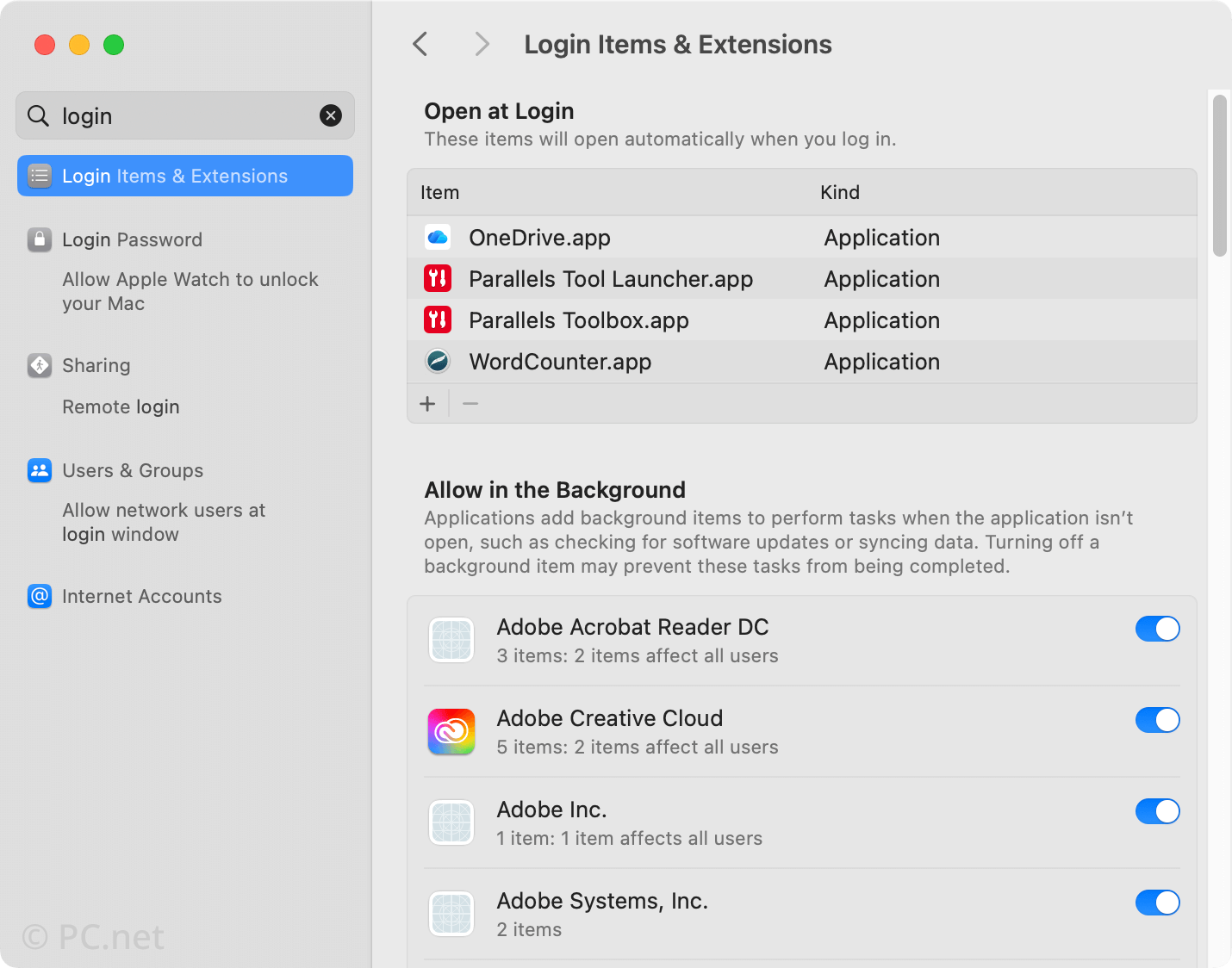
- Click the menu and select System Settings....
- Go to General Login Items & Extensions. (Search for "login" to make it easier to find the option in the left sidebar.)
- Review the list of apps underneath the Open at Login header. Select any app you don't want to open at startup and click the minus (–) button below the list of apps to remove it.
Items You Might Want to Remove
- Apps you rarely or never use
- Old software that may have been installed with another program
- Multiple utilities or backup tools running simultaneously
Important: Disabling a startup app doesn't uninstall the application — it simply stops it from launching automatically. You can always re-enable it later if needed.
 March 2026
